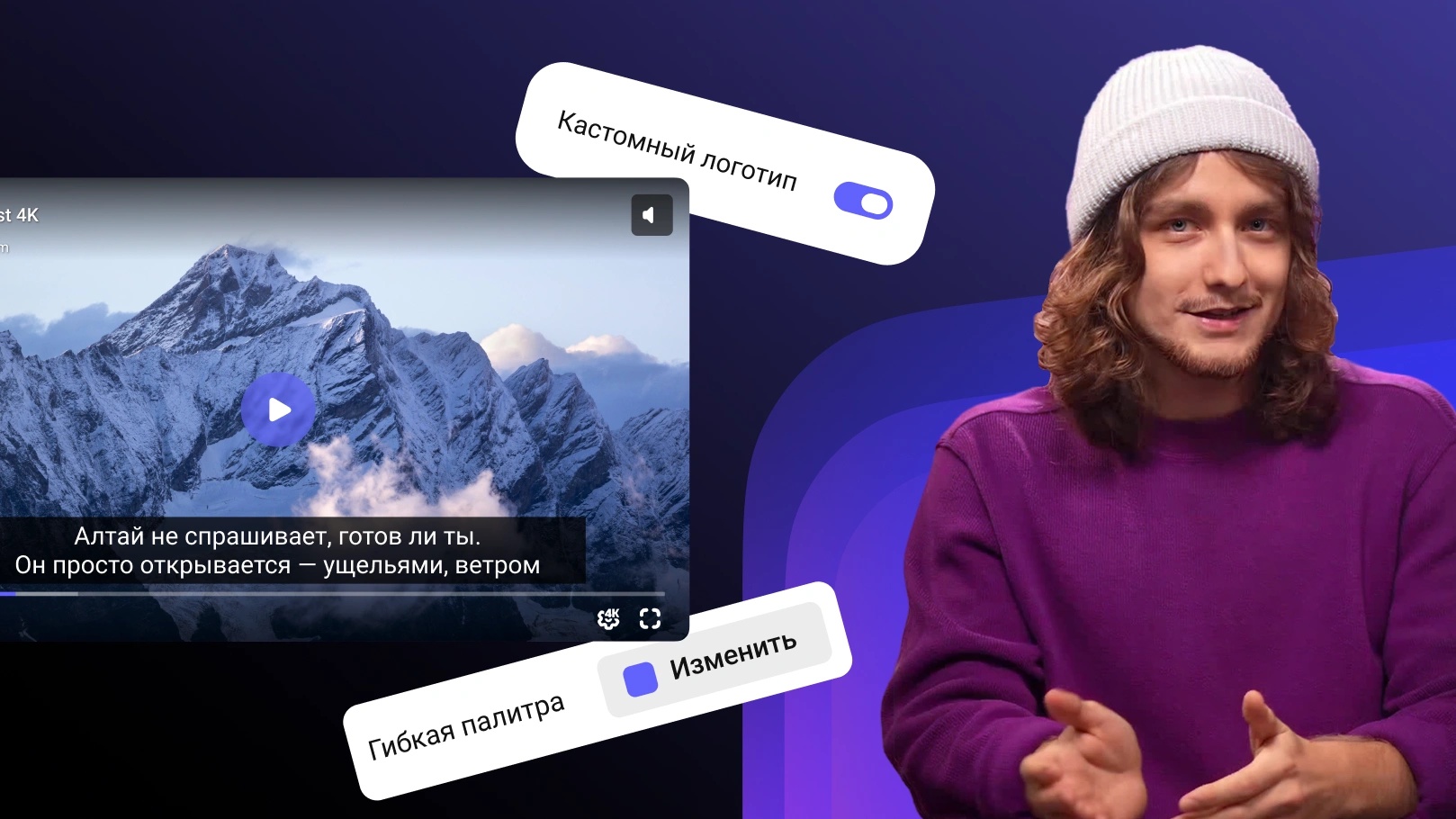
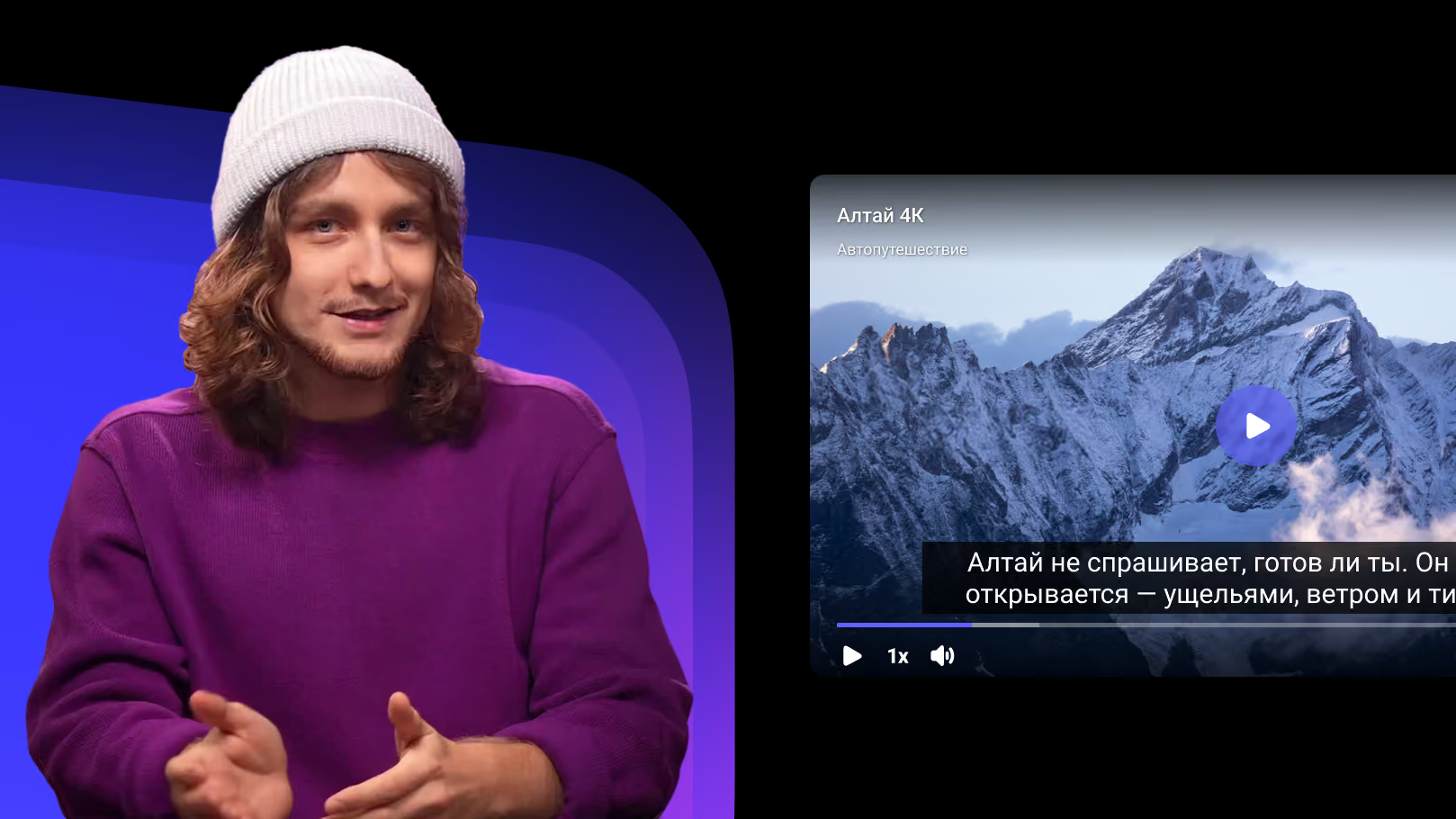
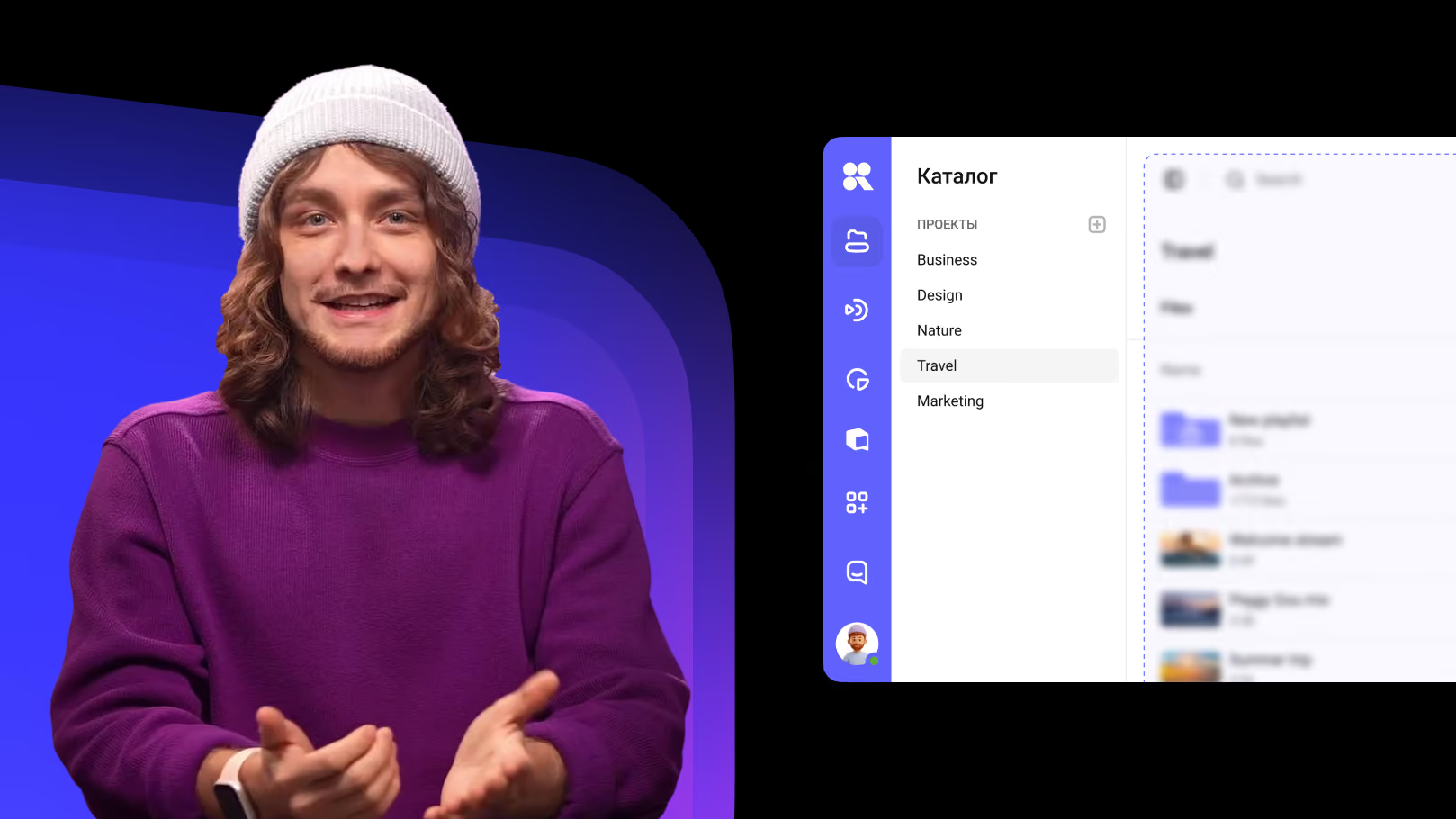
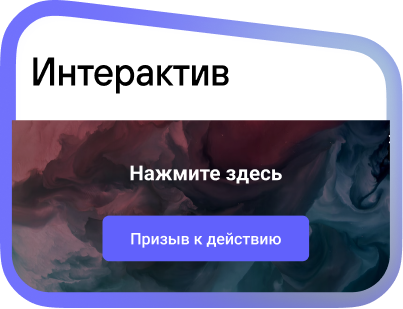
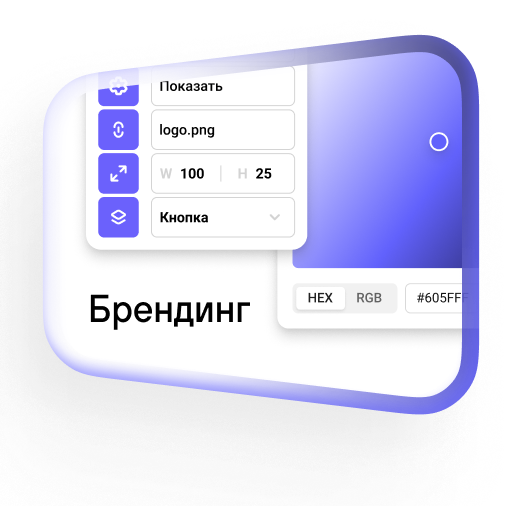
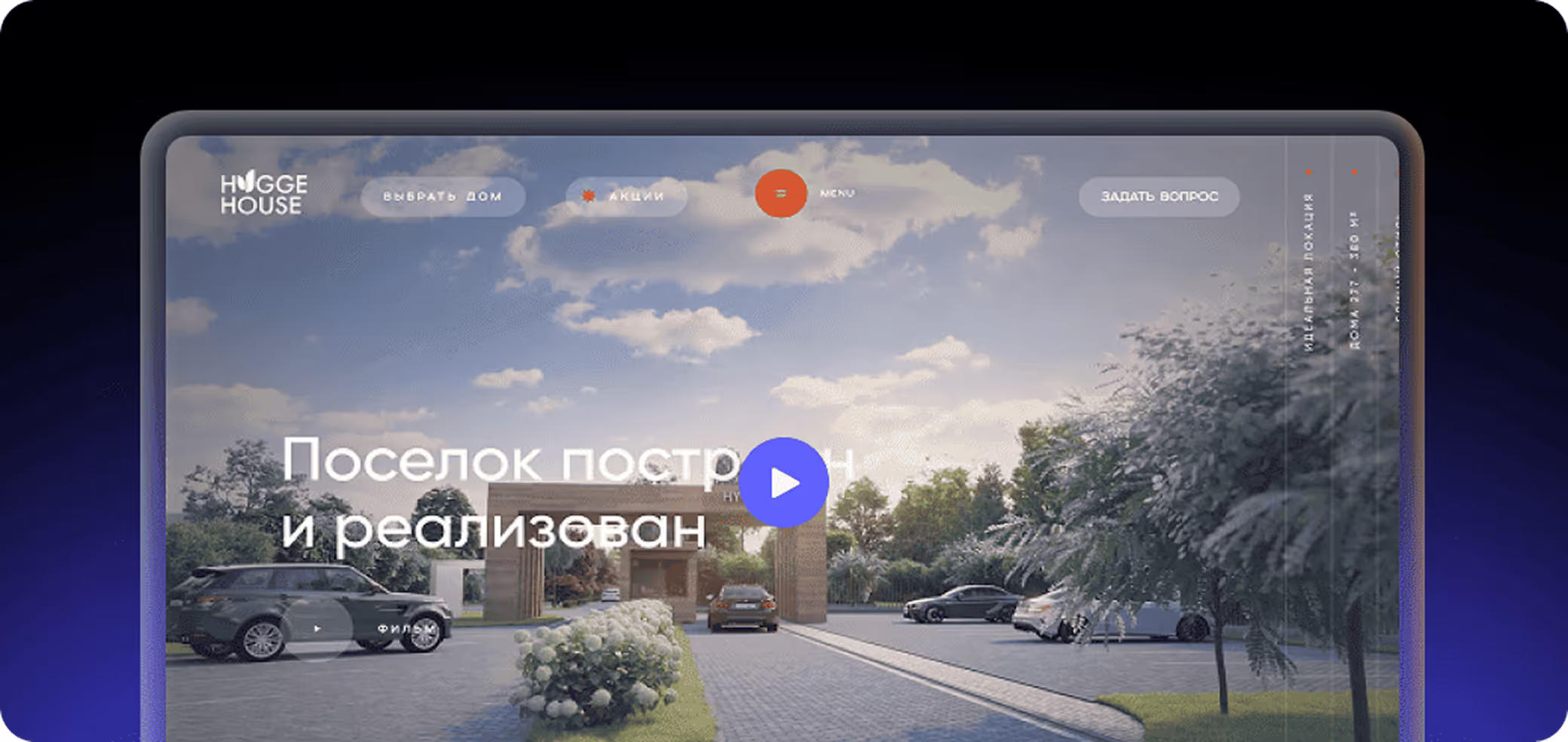
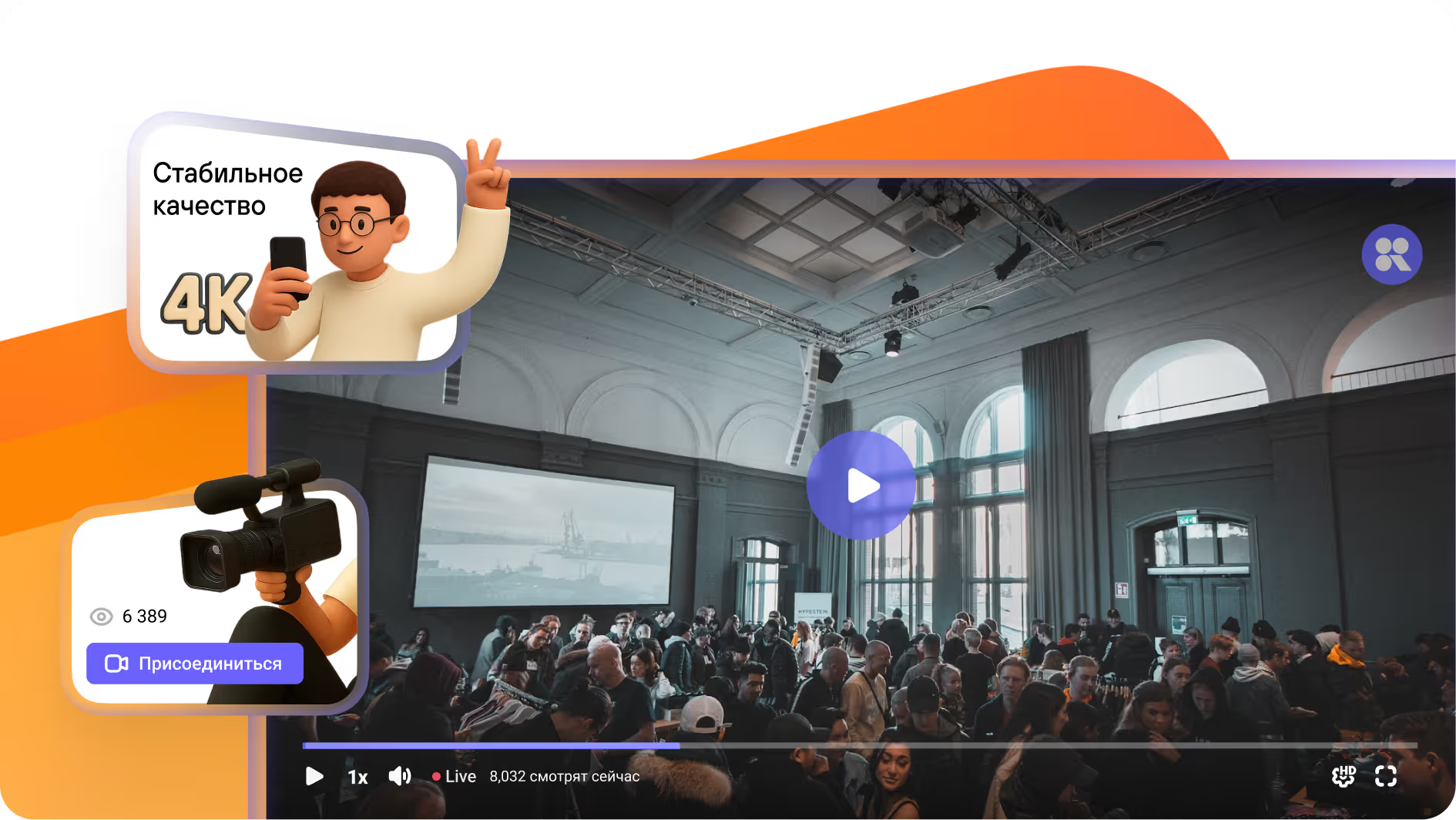
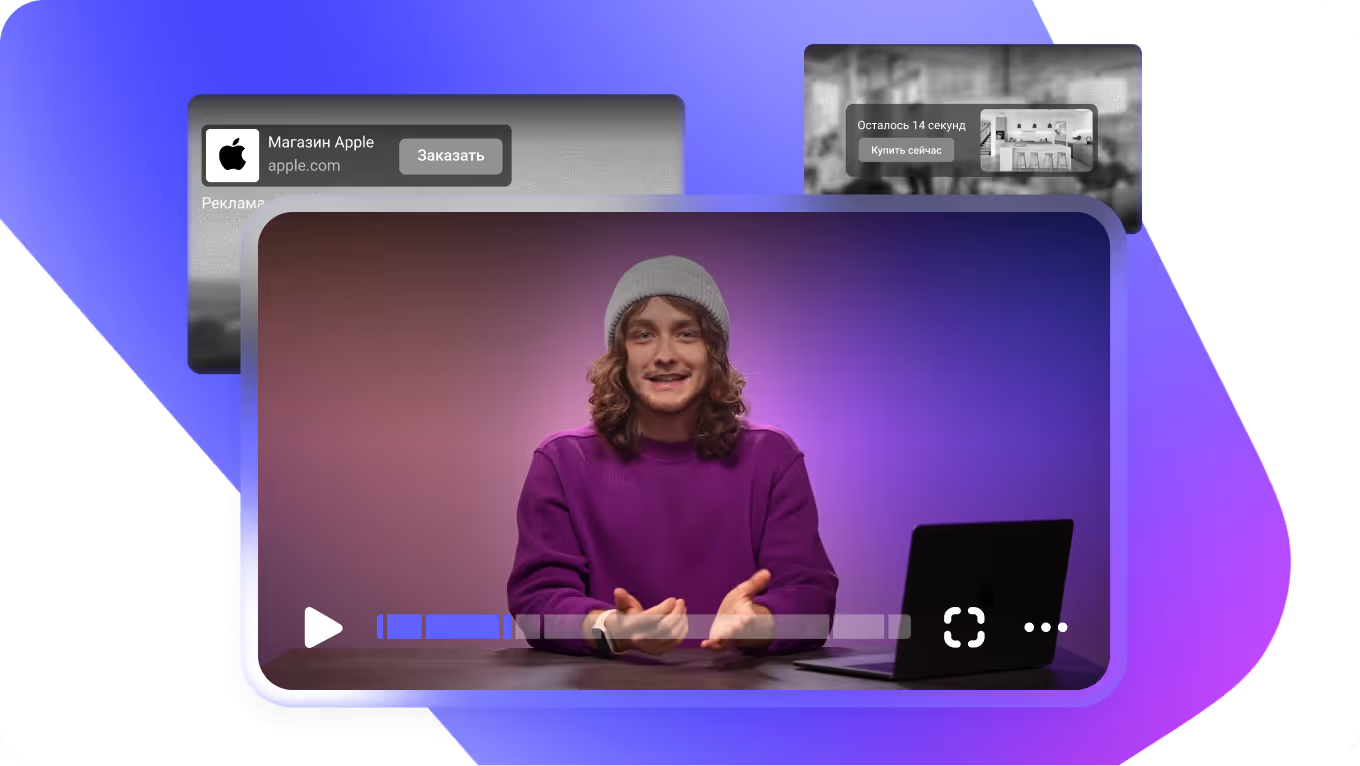
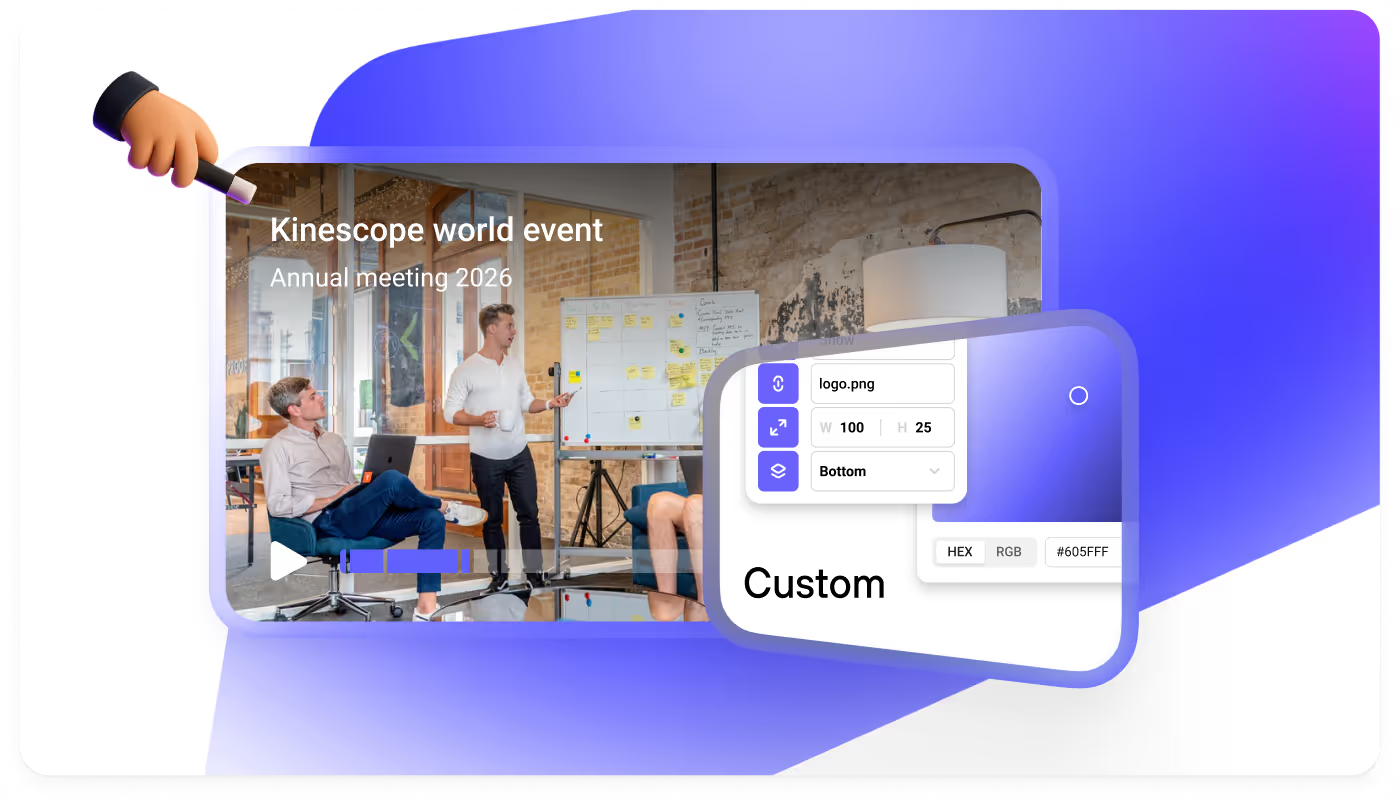
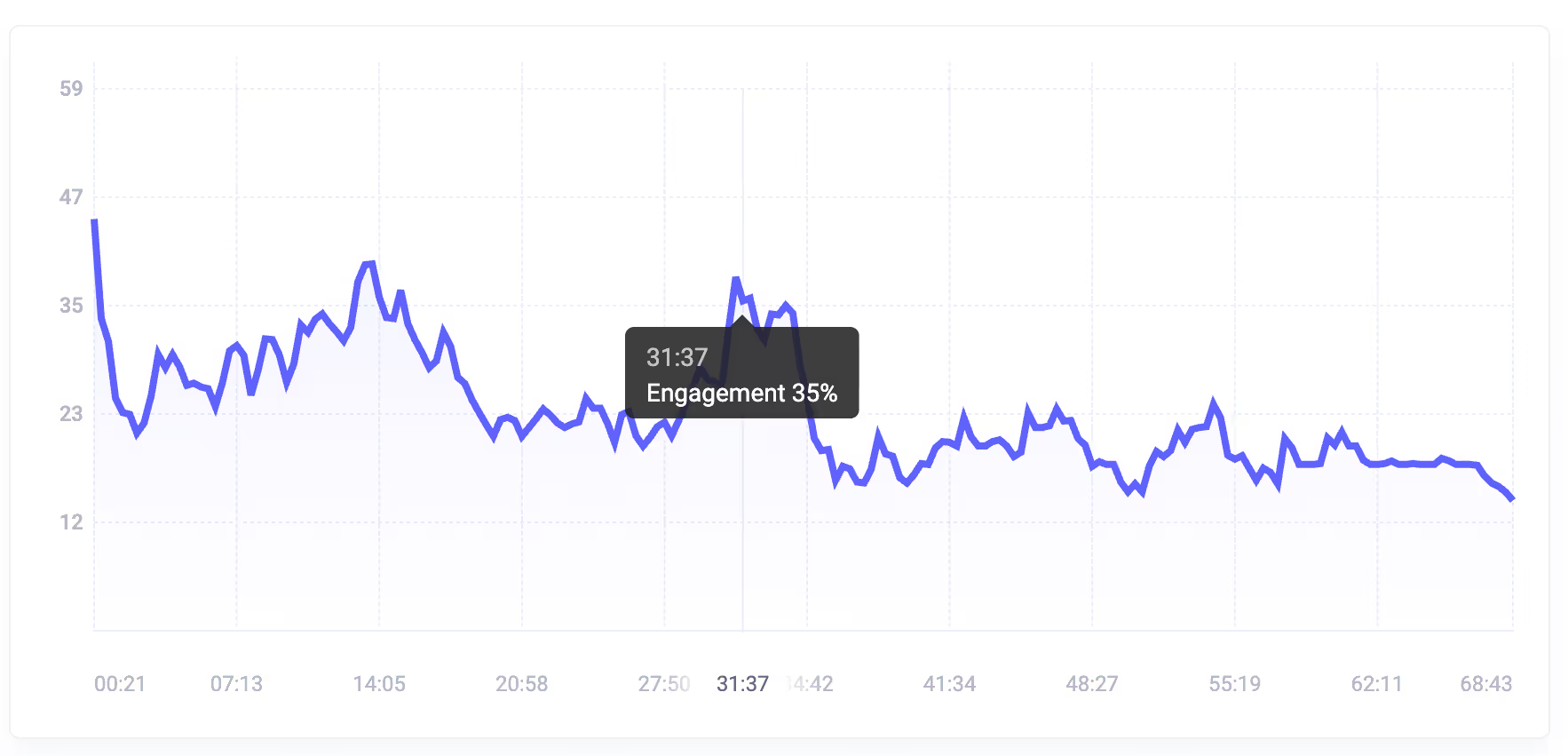
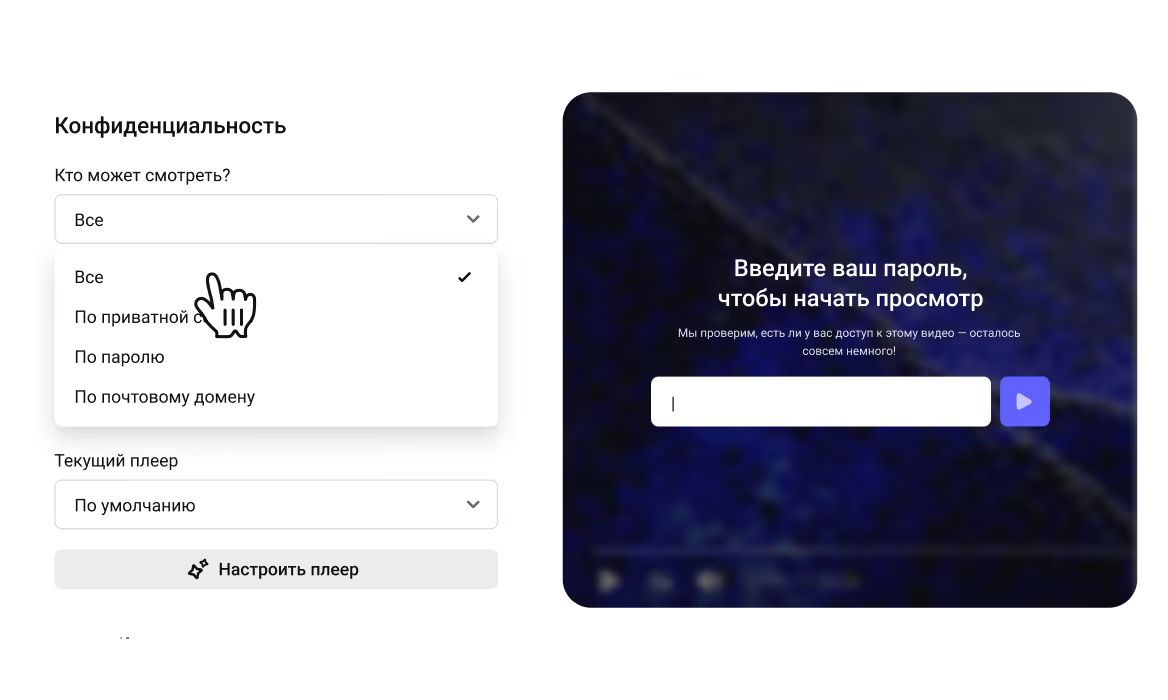
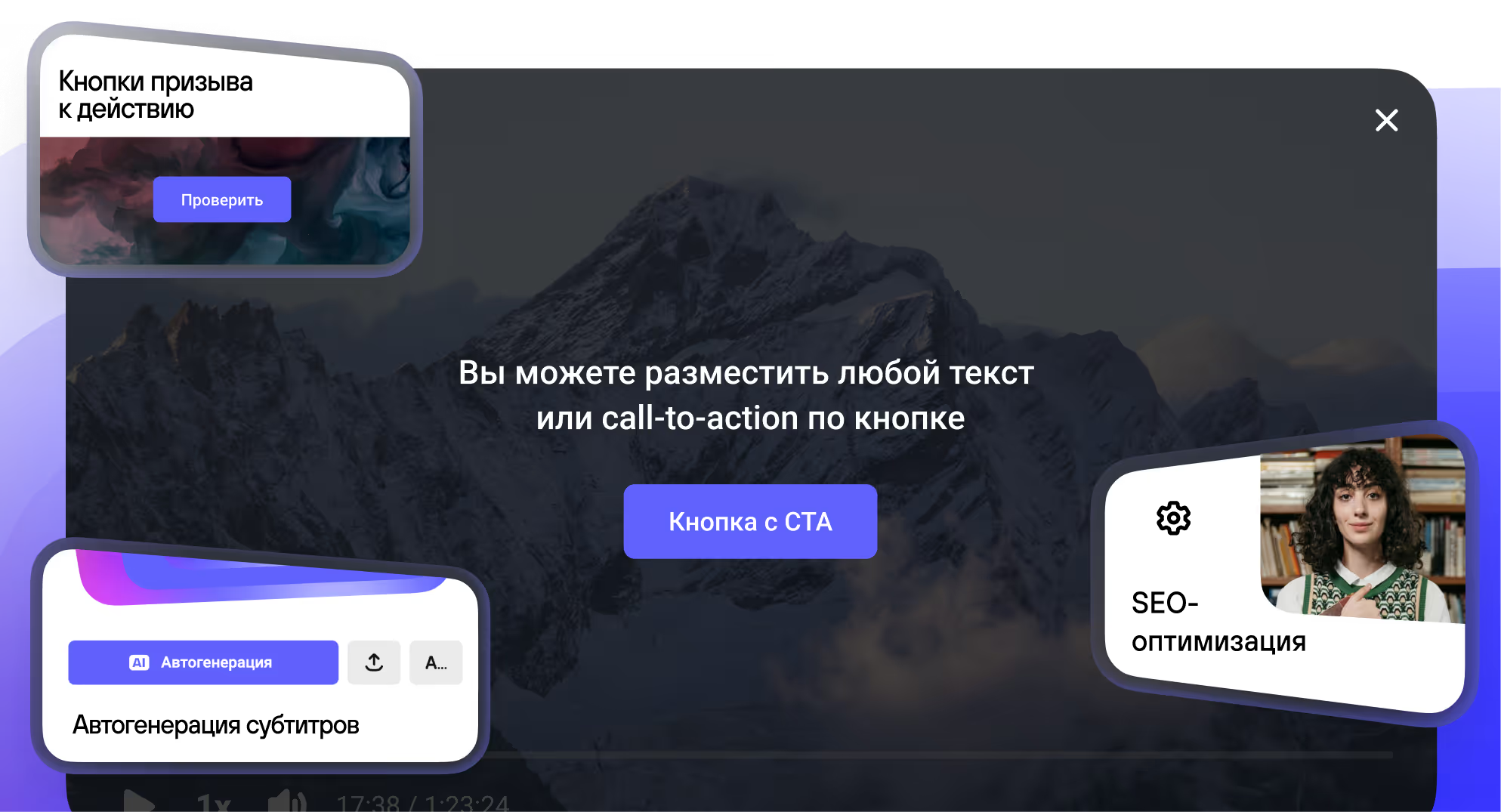
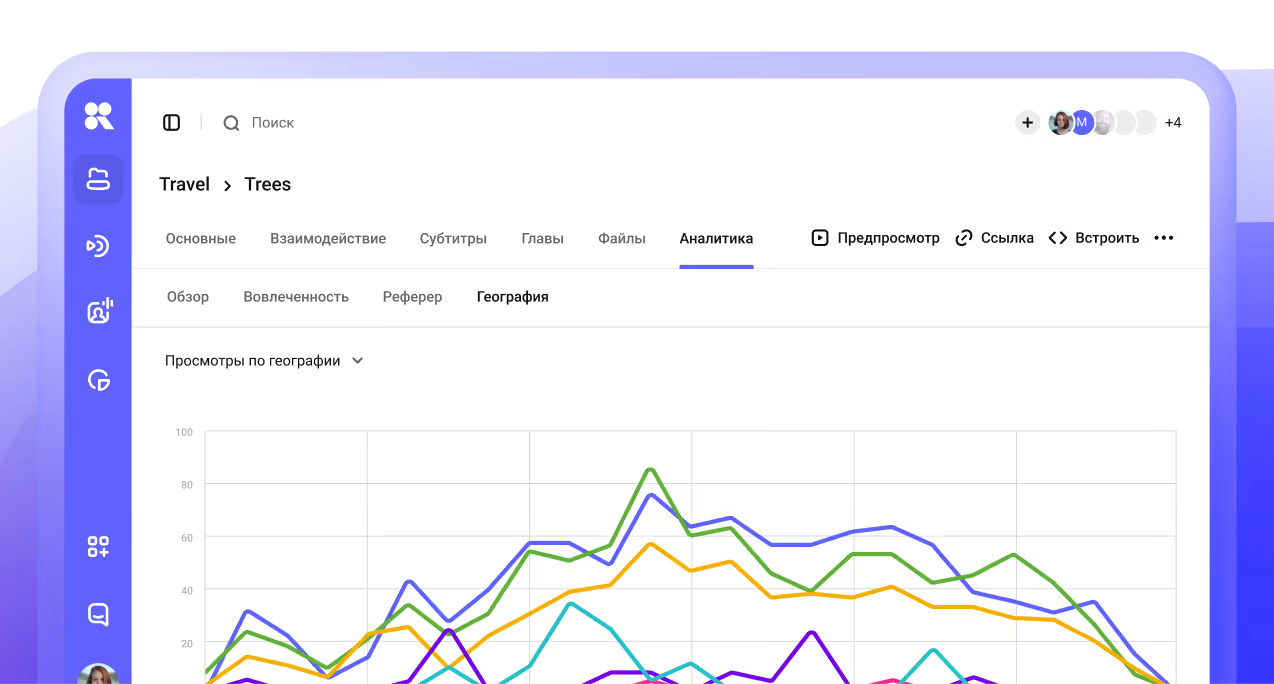
Hello! If you are looking for a stable player without advertising, which will open from any point in Russia and the world and look like a part of your brand, you have come to the right place. My name is Dima, and in this video we will learn in detail about the settings of the Kinescope player and tell you how it closes these and many other tasks in one place. If you are interested in the specific functions of the player, then click on the main timeline and immediately go to an interesting fragment. All player templates are stored in the template manager. Go to Settings, Player tab. Press the new player, set a name and open for editing. The second way is to create a template directly from the video settings. Go to the video and click Set current player or Create new and it will automatically appear in the manager. So, click to create a new player and go to the settings. Pay attention to the player window on the right. This is the preview window. All settings are displayed here in real time. Let's start with the main ones. You can choose a branded color and it applies to the play button, rewind lines and control panels. Circulation of angles allows you to organically fit the player in the style of your platform. The logo is added to the lower right corner of the video and by clicking it opens the link you need. When you turn on auto-launch, the video will start itself when you load the page. According to the browser policy, the launch will be without sound. It will turn on when the first interaction with the player. When you turn on the background video, the control will completely hide. The sound will turn off and the video will loop around. This is a convenient setting if you need to put the video on the background or decorative elements of the page. There is also a 360 mode for panoramic videos. With a non-standard video resolution, the option to remove the black will stretch it to the entire area of the screen from which the user is watching the video. For example, vertical video without black stripes on the smartphone will occupy the entire screen area. The option to download the video allows you to download the video to viewers. By default, it is disabled. When you turn it on, a download icon appears under the player. The video can be uploaded in different resolutions or download a transcript if the video has subtitles. Quality, speed and volume by default determine from which parameters the video will be launched by the viewer. If there are no special requirements, it is recommended to leave it by default. At the end of the video, several scenarios are available. And for those who want to convert viewing into a target action, there is a call to action. A screen with a button appears in the video. You need to set a title and a link, and the viewer will go to the product page, application form or lead magnet. Thanks to the call to action, the video ceases to be just a tool of attraction and becomes a step-by-step sales funnel. Before launch, you can show or hide a title with a sub-title, a large Play button, a playlist block and a control panel. By default, everything is minimalistic. When playing, you can control the title, rewind and control panel. Different settings are suitable for different types of content. Let's move on to the extended settings. Start video with subtitles. When the function is enabled, the player will run the subtitles and automatically pick up their language according to the user browser settings. About how to generate subtitles and headlines for videos using artificial intelligence, I tell you in our video about video hosting. Autopause. If there are several players on the page, when starting one, the rest will pause. Translation section on the device. Chromecast and AirPlay support are turned on by default. Viewers can display the video on the TV directly from the player panel. Settings menu section. This is a gear in the control panel. Here we control what the viewer sees in the menu. Quality is only sound for the weak Internet, playback speed, search for subtitles and video scaling. In the elements section of the control panel, each button can be turned on or off separately. Reproduction, volume, subtitles, playlist, picture-to-picture, switching tracks. We recommend a minimum for short videos and a full set for long educational videos. Watermark section. You can make a given text on top of the video to indicate authorship by setting the type of the show. size, purity and transparency. How to enable dynamic watermarks, we tell separately in our video about content protection and knowledge base materials. There are their nuances. And the last section is additional. Memorizing player settings will save the viewing place and other settings for each viewer. When the viewer returns to the video, the player will start from the same place where the user stopped last time. Control by clicking the mouse or tapping. This is a pause or rewind by clicking directly on the video. The point is more detailed, the kinescope in the context menu can be turned off at the paid rates. SEO optimization adds meta data to the code of building the video. Name, description, poster. Search engines see this data and recommend the video in their release. It is important to note that this setting does not work if the domain restrictions or DRM encryption are enabled. And an important option is data collection. Without it, the analytics in the office will not be filled. By default, it is enabled. These are all the player settings. If you want to immediately prepare several player templates for different types of content for yourself, we have a separate video guide with detailed examples about this. And there is also a short note in the attached files to this video. Take it by the label in the player control panel. If you are a developer and want to control the player from the code, now we will show you how it works. Through the iFrame Player API, the player can be controlled programmatically. Start, pause, rewind, control volume and quality, subscription to events is available, pause, the end of the video by clicking on the CTA button. This is especially valuable for LMS, that is, the platform for loading courses. API allows you to track the progress of viewing, automatically switch to the next lesson and link views with the rating system. Through API, you can also manage playlists, video switching, track change events, synchronization with application logic. And if you are building a product on a mobile platform, we have a ready-made SDK for Swift, Kotlin, Flutter, React and Vue with open code and parameters. Full documentation for developers in our knowledge base, links in the annotation. If you need to monetize content and add third -party advertising, for example, advertising blocks Yandex Direct or Google Ads, then our player also supports advertising tags. The Add Tag URL parameter is transferred to the insert code. We support formats VAST, VPAT and IMA from Google. This is what you get with a player from Kinescope. Video without advertising and other people's logos. Player for your style. Stable playback up to 4K on any device. Detailed analytics, flexible setup, optimization for seo and chat gpt, as well as many other tools and all this from a single kinescope cabinet. Try it yourself! Thank you for being with us! See you in the kinescope, see you in the future!